 CROWDBEAM
 Three Clear Steps From Media to Display.
Crowdbeam is designed around a straightforward workflow: prepare compatible content, position the pyramid on your phone’s screen and start the presentation.
Choose the Content You Want to Present.
Start with a compatible image, video or prepared visual asset. Use the Crowdbeam app or supported workflow to format the content for the pyramid display.
Keep the important subject centered and use clean source material for the strongest visual result.

Set Up Crowdbeam Correctly.
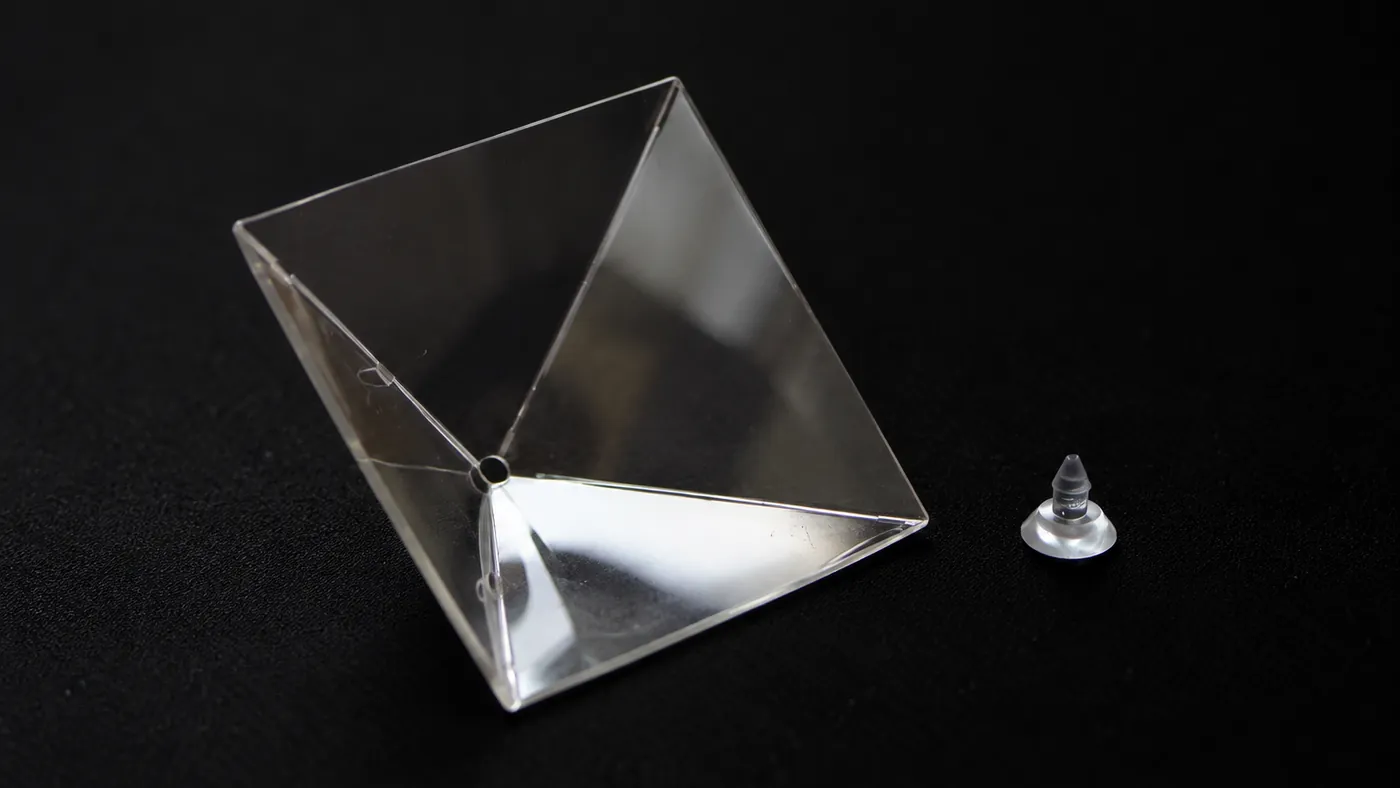
Place your phone on a stable surface, position the transparent optical pyramid on the screen as instructed and make sure the viewing area is clear.
Lighting conditions, positioning and source-media quality can affect how strong the visual appears.
Start the Display.
Run the prepared media and view the resulting floating visual illusion inside the optical pyramid. Adjust available settings if the content needs to be resized, repositioned or replayed.

No complicated setup. No advanced technical knowledge required. Prepare, adjust and present.
From Screen to Display
Phone alone
Crowdbeam starts with just your phone, screen off.
Pyramid added
The transparent optical pyramid sits on top of your phone’s screen.
Display activated
Play the prepared content, and the display becomes visible inside the pyramid.
Content appears
Your prepared content forms as a floating visual illusion.
App prepares content
The Crowdbeam app formats new content for you to play under the pyramid.
For the Best Presentation
- Use high-quality source media with a clear subject.
- Avoid overly bright ambient light directly around the display when possible.
- Keep the optical surfaces clean and correctly aligned.
- Test important presentation content before a live event or customer demonstration.